Transfer files from mobile to PC online
On your phone, add files below and tap Generate Code. On your PC or laptop, type the 8-character code into Find and download. No app, no cable, no shared Wi-Fi needed.
- 100 MB per share
- 8-character code
- 3 days, extendable to 15
- No account
Find
Enter a share code to access shared content.
The 8-character code from the sender: 2 letters, then 6 digits.
A browser transfer is the quickest route when you only need a few files on the computer: it works between any phone and any PC, including an iPhone and a Windows laptop, and leaves nothing installed or signed in on a shared or office computer.
It is not the right tool for everything. The limit is 100 MB per share and every share is deleted after 3 days (15 if extended), so for a whole camera roll or long 4K videos a USB cable is faster. Both routes are explained below.
How ShareQuik works
- Step 1
On your phone
Open ShareQuik in Chrome, Safari or any current browser. Tap Select Files, choose photos, videos or documents (up to 100 MB in total), then tap Generate Code.
- Step 2
Keep the code
Wait until the upload finishes and the 8-character code appears. Moving files to yourself? Just read it off the phone screen.
- Step 3
On your PC or laptop
Open ShareQuik, type the code into Find, enter an email address and click Download & Access. The files save to your Downloads folder.
Why use the browser instead of a cable or an app
Nothing to install on either device
Both sides use the browser that is already there, which matters on a work, library or college PC where you can’t install software or plug in a phone.
Any phone to any computer
Android or iPhone to Windows, Mac or Linux. No pairing, no Bluetooth and no shared account between the two devices.
Different networks are fine
Each device only needs an internet connection. The phone can be on mobile data and the PC on office Wi-Fi.
Original quality
Files are downloaded exactly as they were uploaded. Photos and videos are not compressed the way chat apps often do.
Files people move from phone to PC
Photos
Full-resolution photos for editing, printing or attaching on the computer. iPhone photos may be HEIC; see the note below if Windows won’t open them. More in send photos online.
Short videos
Clips that fit in 100 MB. A minute of 4K video from a recent phone can be well over that, so trim it, send it in parts or see sending large video files.
PDFs and documents
Scans, forms, tickets, Word or Excel files, and attachments you saved from WhatsApp or email. On Android look in Downloads or Documents in the file picker; on iPhone, tap Browse to pick from the Files app.
College, office and print-shop PCs
Upload from your phone, download on the shared computer and print, without signing in to your own accounts there. Remember the code opens the share for anyone who has it until it expires.
How to transfer files from your phone to a PC, step by step
On your phone (Android or iPhone)
- Open sharequik.com in your phone’s browser. You can use this page.
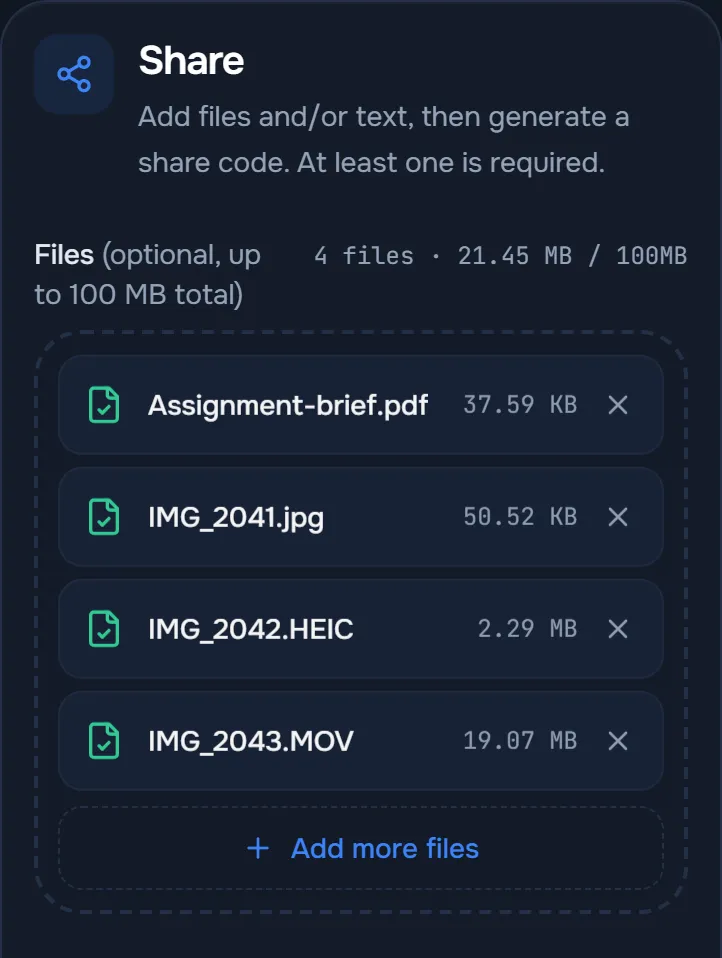
- In the Share panel, tap Select Files and pick your files. You can add several, up to 100 MB in total.
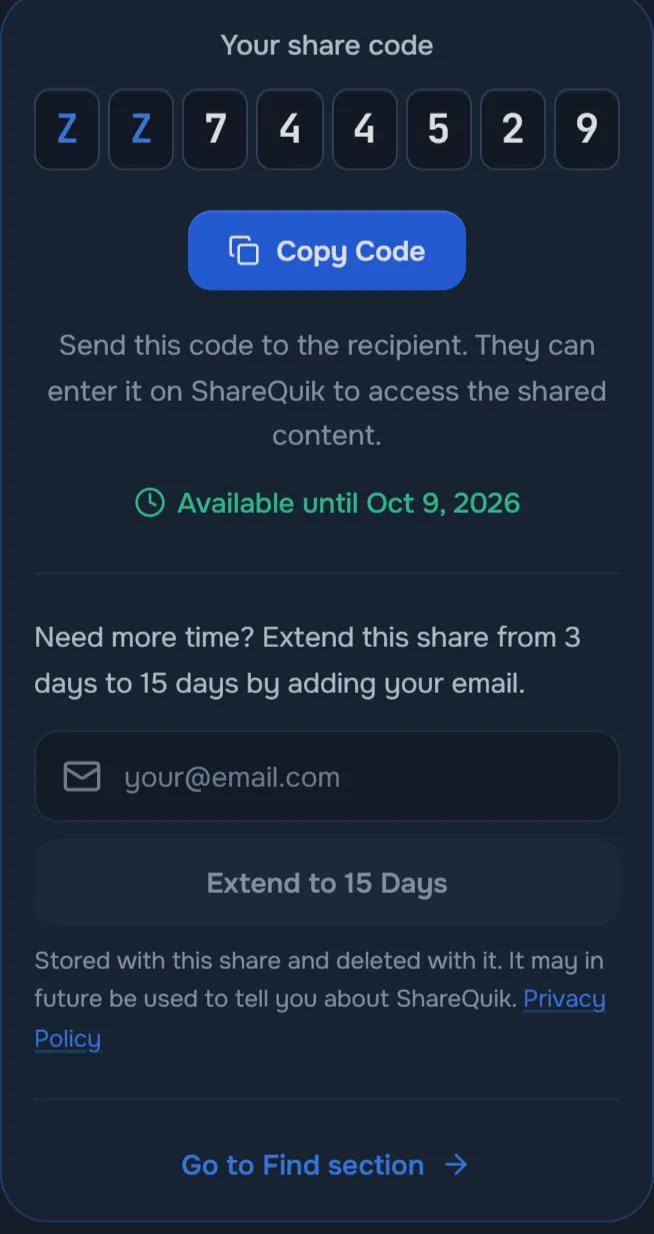
- Tap Generate Code and keep the page open until the upload finishes and the code appears, for example BX678095.
- Won’t get to the PC within 3 days? Add your email under the code and tap Extend to 15 Days. This is only offered on that screen, right after the code is generated, so do it before you leave it.
On your PC or laptop
- Open sharequik.com in any browser.
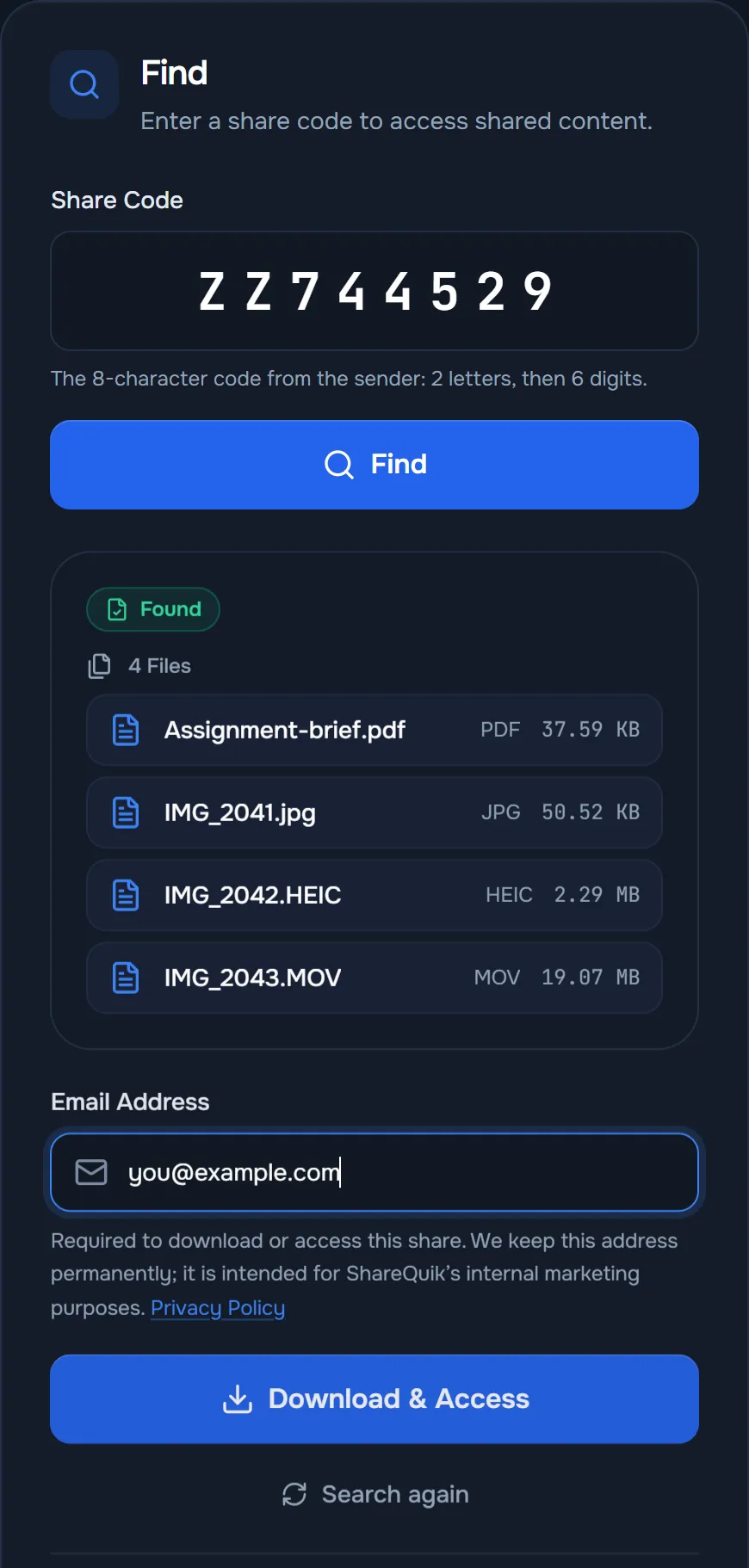
- Type the code into Find and press Find. Capital letters aren’t needed; the code is upper-cased for you.
- Check the files listed, enter your email address and click Download & Access.
- Each file downloads separately (there is no ZIP). If the browser asks whether ShareQuik may download multiple files, choose Allow. If a file is still missing, select Search again, enter the code and download again.
Files land in your browser’s download folder, usually Downloads. Press Ctrl + J in Chrome or Edge on Windows to open the download list and click Show in folder.
What to know before you send
- Size: up to 100 MB per share, across all the files in it. Split bigger batches into several shares.
- How long it stays: 3 days, or 15 if extended on the screen shown right after the code is generated. Then the share and its files are deleted automatically and can’t be recovered.
- Who can open it: anyone who has the code, until it expires. Don’t post the code publicly.
- Email at download: an email address is required to download. ShareQuik keeps it permanently for its own marketing; see the Privacy Policy.
- Data: both devices need internet. On mobile data, the upload counts against your plan.
Other ways to transfer files from mobile to PC
Every method has a job it does best. The table compares them; details follow.
| Method | Best for | What you need | Watch out for |
|---|---|---|---|
| ShareQuik (browser + code) | A few files, any phone to any PC | A browser and internet on both devices | 100 MB per share; email needed to download |
| USB cable | Whole photo libraries, long videos | A data cable; Apple Devices app for iPhone | Charge-only cables don’t work |
| Phone Link | Android users moving files daily | Phone Link set up on PC and phone | Setup and pairing first |
| Quick Share for Windows | Regular Android to own-PC transfers | Quick Share app on a Windows 10/11 PC | Android only; devices within about 5 m |
| Bluetooth | One small file, nothing else available | Bluetooth and pairing on both | Slow; not available from iPhone |
| Cloud storage | Files you also want backed up | Same account on both devices | Storage quota; slower for one-offs |
| Email or chat app | One small document | An account on both devices | Size caps; photos often compressed |
With a USB cable
- Android: unlock the phone, connect it, tap the “Charging this device via USB” notification and choose File Transfer. The phone opens in File Explorer; photos are in DCIM > Camera and saved files in Download.
- iPhone: install Apple’s Apple Devices app from the Microsoft Store, connect the iPhone and tap Trust if asked, then import photos and videos with the Windows Photos app.
A cable is the fastest way to move a whole photo library or long 4K videos, and it doesn’t use your data. It needs a data cable (some cheap cables only charge) and, for an iPhone, Apple’s app on the PC.
Phone Link, Quick Share, Bluetooth, cloud and email
- Phone Link (Windows): links an Android phone to your PC so you can move files between them. Worth setting up if you do this daily on your own PC.
- Quick Share for Windows: Google’s app sends files from an Android phone to a nearby Windows 10 or 11 PC. It needs the app installed on the PC, with Bluetooth and Wi-Fi on and the devices within about 5 metres.
- Bluetooth: works for one small file between an Android phone and a PC once they’re paired, but it is slow, and iPhones can’t send files to a PC this way.
- Cloud storage (Google Drive, OneDrive, iCloud): good for files you also want backed up, if the same account is signed in on both devices and you have storage space.
- Email or a chat app to yourself: fine for one small PDF, but email attachments are often capped at 20–25 MB (see email attachment size limits) and chat apps usually compress photos and videos.
When ShareQuik is the better choice, and when it isn’t
Use ShareQuik for a handful of files under 100 MB, an iPhone and a Windows PC, a computer you can’t install anything on, or when there’s no working cable. Use a cable or cloud sync for an entire camera roll, videos well over 100 MB, or anything you want stored long term: ShareQuik deletes every share after at most 15 days and is not a backup.
Troubleshooting
- The code isn’t found: check all 8 characters (two letters, then six digits). The share may have expired or been removed, or the phone may have been closed before the upload finished and the code appeared.
- “Too many attempts”: after several wrong codes from the same network, lookups pause for up to 15 minutes to stop people guessing codes. Wait, then enter the correct code.
- Generate Code is greyed out: add at least one file. If the counter shows more than 100 MB, remove files and send the rest as a second share.
- The upload stalls on the phone: stay on the ShareQuik tab with the screen on until the code appears; phones can pause background tabs. Stronger Wi-Fi helps with videos.
- Only one of several files downloaded: each file downloads on its own, and browsers ask before letting a site download several. Allow it (or allow automatic downloads for ShareQuik in the browser’s site settings), then select Search again, enter the code and download again.
- You can’t find the file on the PC: open the browser’s download list (Ctrl + J in Chrome or Edge) and choose Show in folder.
- “This share is no longer available”: it has expired or been removed and can’t be recovered. Upload the files again for a new code.
iPhone photos are often HEIC, which some Windows PCs can’t open without an extension. To take new photos as JPEG, go to Settings > Camera > Formats on the iPhone and choose Most Compatible.
Privacy and safety
- The code is the key. Anyone with it can open the share until it expires, so give it only to the person or device that needs it. More on how share codes work.
- Files are deleted automatically when the share expires, so keep your originals.
- Uploads are not scanned for malware. Only open files from people you trust.
- For confidential files, encrypt them or put them in a password-protected archive before uploading.
- No accounts. The email entered to download is kept for ShareQuik’s internal marketing, as the Privacy Policy explains. About ShareQuik covers how the service works and its limits.
Going the other way: from PC to mobile
Swap the sides: upload on the PC or laptop, then type the code on your phone and download. It suits the files people need on the go, such as a ticket, a boarding pass, a PDF to sign or a song for the drive.
Where the files end up on your phone
- Android: in the Downloads folder; open it from the Files app (Files by Google, or My Files on Samsung phones).
- iPhone: Safari saves downloads to the Files app, in Downloads. To put a photo or video in your photo library, open it there, tap the Share button and choose to save it.
Other ways from PC to phone
- Android with a cable: choose File Transfer on the phone, then drag files into a folder on it in File Explorer.
- iPhone with a cable: Apple’s Apple Devices app can copy files to iPhone apps that support file sharing, and only to those apps, so for a single PDF or photo a browser transfer is usually quicker.
- Phone Link: with an Android phone linked to Windows, you can send files from the PC to the phone.
- Text instead of a file, like a link or an address: share text online with the same kind of code.
Frequently asked questions
Do I need an app to transfer files from mobile to PC?
No. ShareQuik runs in the browser on both the phone and the PC, with nothing to install and no account to create.
Do my phone and PC need to be on the same Wi-Fi?
No. Each device only needs an internet connection. The phone can even use mobile data.
Does it work with an iPhone and a Windows PC?
Yes. Upload from Safari on the iPhone and download in any browser on Windows. For a few files it is often simpler than installing Apple’s app and using a cable.
What is the maximum size I can send from my phone?
100 MB per share, across all files in it. For more, use several shares or a USB cable.
Will photos and videos lose quality?
No. Files are stored and downloaded exactly as uploaded, without compression.
Why do I need to enter an email to download?
ShareQuik requires an email address to download files from a share. It isn’t verified and doesn’t unlock anything else; it is kept for ShareQuik’s internal marketing, as described in the Privacy Policy.
Can I download several files at once as a ZIP?
No. Each file in a share downloads separately. If your browser asks whether ShareQuik may download multiple files, choose Allow.
How do I send files from my PC to my phone?
The same way in reverse: upload on the PC, then type the code into Find on your phone and download.
Can I move files from my phone to my laptop without a USB cable?
Yes. Both devices only need a browser and an internet connection; nothing is plugged in or paired. For whole photo libraries or very large videos, a cable is still faster.
Related ShareQuik pages
- Transfer files online between any two devicesTransfer files online between your phone, laptop and other devices. Upload on one, type an 8-character code on the other, and download. No cables, apps or logins.
- Share files with a codeUpload files, get a code like BX678095, and let anyone type it on any device to download. Unlike 10-minute pairing codes, it keeps working while you’re offline.
- Send files between iPhone and AndroidMove photos, videos and documents between an iPhone and an Android phone in the browser: upload on one, type an 8-character code on the other. Up to 100 MB.
- Send photos online in full qualitySend photos online at full resolution, with no messaging-app compression and no account. Share a batch up to 100 MB with a single 8-character code from any device.
- Send large video files in original qualitySend or share video files up to 100 MB in original quality, with no account. How much video fits, how to shrink longer clips, and sharing one clip with a group.
- Share text online with a short codePaste up to 3,000 words, get an 8-character code, and read the text on any phone or computer. No account and no email needed to view it; it deletes after 3 days.
Further reading
- How to transfer files from one computer to anotherFive ways to transfer files from one PC to another, including Windows to Mac: online transfers, cables and drives, network sharing, cloud sync and nearby sharing.
- Email attachment size limits, and what to do when you hit themThe attachment size limits of Gmail, Outlook and iCloud Mail, why a file under the limit can still bounce, and what to do when your attachment is too big.
- How to compress files so they are easier to shareHow to make videos, PDFs, photos and folders smaller before you send them, what each method costs in quality, and when splitting a transfer works better.
Sources
- Google Android Help: Transfer files between your computer & Android device
- Apple Support: Transfer photos from your iPhone or iPad
- Android: Quick Share app for Android to Windows PC file transfer
- Microsoft: Seamlessly transfer content between your devices (Phone Link)
- Apple Support: Use Apple Devices to share files between your Windows computer and your iPhone or iPad
Get the file onto your PC now
Open this page on your phone, select the files and generate a code. Then type it on your PC.